bookmark_borderXcode quirks & features

As you may imagine it takes quite some time to get to know an IDE like Xcode. Too many features, many things I still today have no clue why they are offered to “customise”, yet no-one can tell you how you can customise. Like all those compiler settings like only the most hard core programmers have any clue what they do.
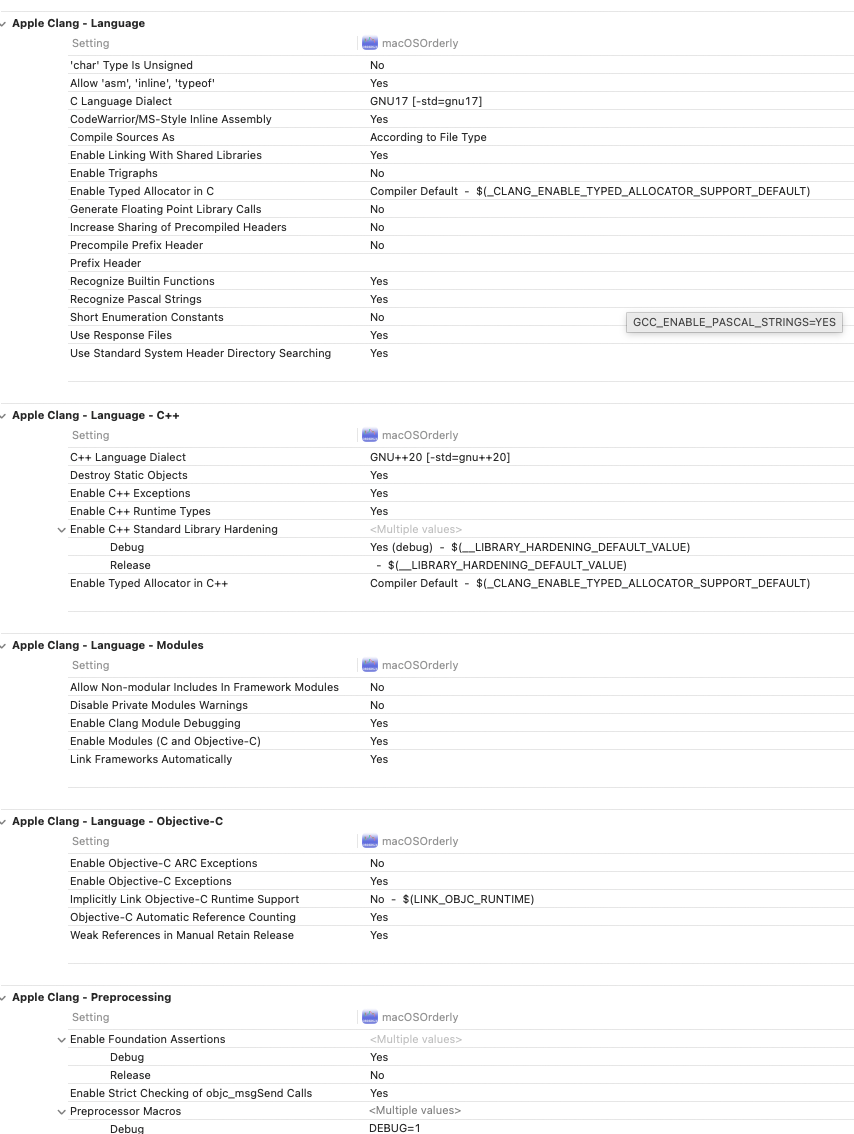
Things to customize

Xcode can be quite confusing regarding editors, editor panels, window tabs. Try out what fits best for you. I prefer most of the time to have a new editor open when clicking a source file. I also like it to be pinned.

Settings
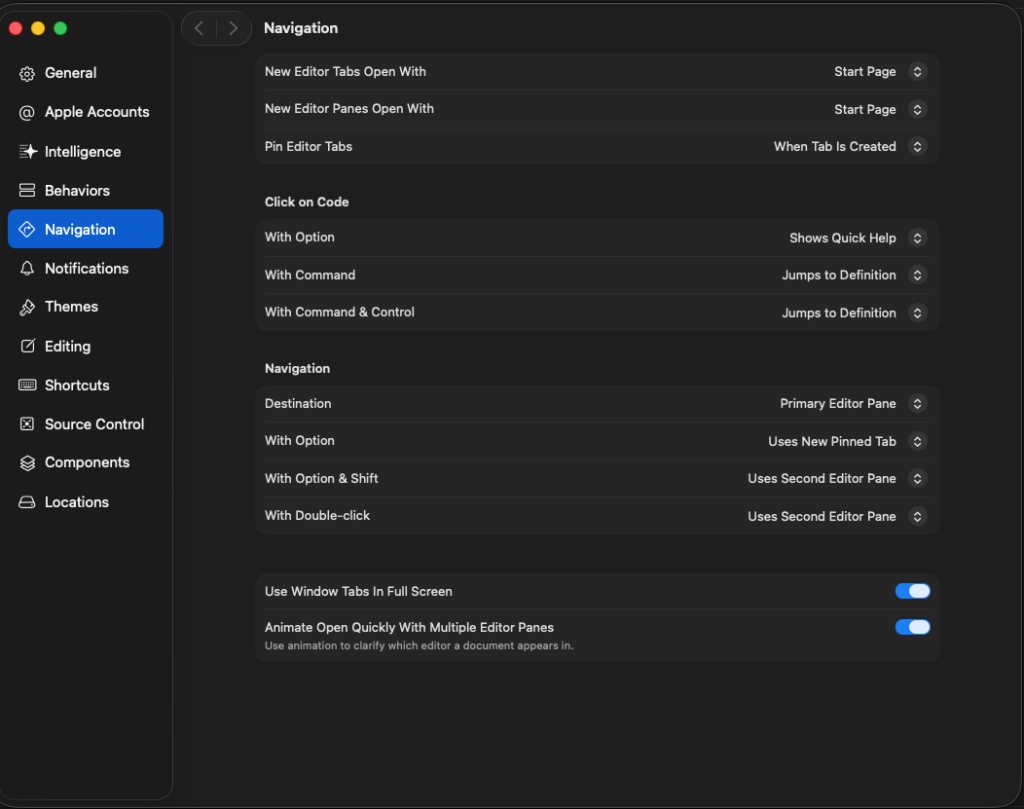
But there are situations where you don’t want all files to open in a new pinned editor tab. Then change to manually or when document is being edited.

Sometimes, as in my case with iOS and macOS port, I needed to compare certain views for differences. I then, sometimes, opened either a new window tab for both iOS and macOS. Sometimes I just opened a new editor pane.

The confusing thing with separate window tabs is, that a new window tab is like a copy of the existing window tab. My suggestion: play around get a feeling of what works well, what doesn’t and adjust the Navigation settings accordingly.

Shortcuts

Shortcuts can make your life easier. For me, using a Swiss German keyboard, certain shortcuts are awkward to use. I have removed a lot of shortcuts.

My most use shortcuts:

  • <shift><⌘><f> to find globally
  • <⌥><⌘><j> to filter project navigator
  • <shift><⌘><0> to quickly open a file (zero not an o)
  • <ctrl><6> to quickly display (and filter) a file’s properties/methods/marks (TODO/FIXME/MARK)
  • <⌘><1-9> to quickly change navigator (will also hide the navigator if corresponding number is displayed already)
  • <⌘><b> to build (see if compiler complains)
  • <⌘><r> to run
  • <ctrl><0> to select scheme (used for build/run)

Bundle Identifier

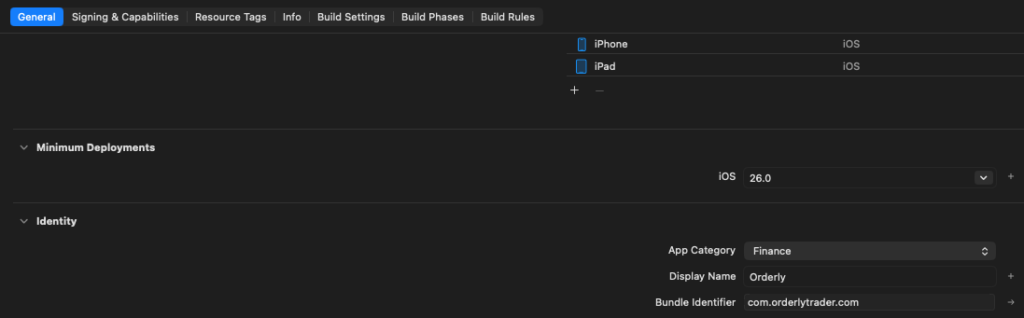
The bundle identifier is very important. I believe changing it, will automatically create a new simulator. So if you rely on dbs where you have stored certain required settings, make sure you do not change Bundle Identifier abirtrarily.

Product Name

iOS: Display Name decides the app’s name
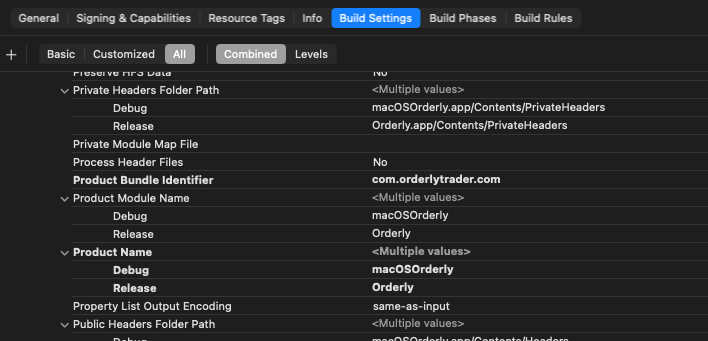
macOS: To change display name for macOS you need to change the Product Name
Capabilities

For iOS I wanted to use FaceID to “uncover” the API secret. For it to work I had to enable FaceID capability and write a sentence for what it is being used for

For Sandbox usage (TestFlight) I had to enable Network capabilities, interestingly only for macOS port

App Icon

I strongly recommend using Apples Icon Composer. It is slightly awkward to use, but with some playing around you can actually create quite nice app icons.

GIT Integration

I first thought: Git integration for a “one-man-show”? why? Eventually it proved very useful. I had 2 situations where I could recover changes which, not using GIT, would have been lost. So get yourself used to it early on.

My personal advice: commit one time too much instead of one time too less. I’d work on small improvement pieces and commit and push repeatedly. For bigger milestones it pays off to actually enter valid commit comments. Instead of working, use “functionality x working, but UX needs improvement”. Or when you deem a “version” is ready, eg. V0.5.4, then commit it as such.

My flow:

  • 2 branches (main / dev)
  • develop on dev, compile run (git checkout dev and develop, then inside Xcode, stage, commit, push)
  • merge into main (in cml: git checkout main, git merge dev)

Main advantage of using multiple branches: You can test on one branch.. if all fails: delete the branch and create a new copy from the last commit where everything worked (chatGPT can help with appropriate GIT commands)

I only stage/commit/publish in Xcode. Rarely I switch branches. As UI does not immediately reflect the newly activated branch.

Differences

Not sure if you can use that feature without GIT. But to be able to see differences between now and any commit is great.

Enable differences in the top right of the editor with the left/right arrow button.

Once Differences view is displayed you can on the bottom go back to any commit.
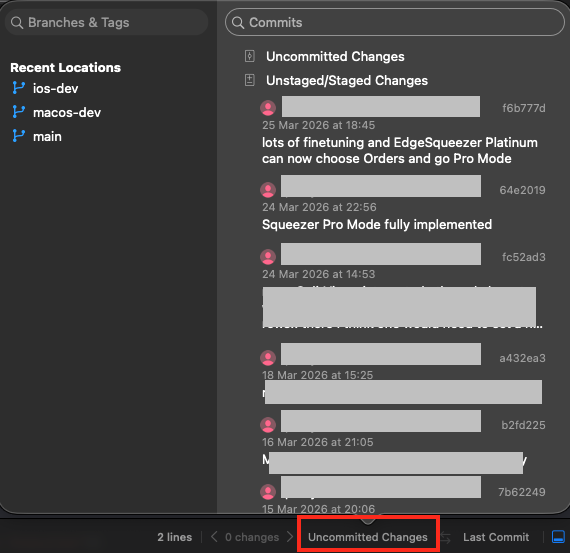
ErrorHandling / Debugging / Logging

Errorhandling is usually for me, in a new development environment, one of the first things I want to get right. It can help you so much during debugging issues.

I have implemented very easy to use static methods:

  • Log.info
  • Log.warning
  • Log.error
  • Log.debug
  • Log.trace

The first 3 are written to log files which can be shared with me. Debug/Trace I mainly use while developing to really deeply inspect what’s going on.

Messages are displayed for both ports via a ZStack Overlay

AppStore integration

I know, having to pay Apple a lot of money to be able to use its AppStore may be quite frustrating. But seeing the functionality it offers: it definitely is worth it.

As a matter of fact you can create a “local” AppStore implementation.
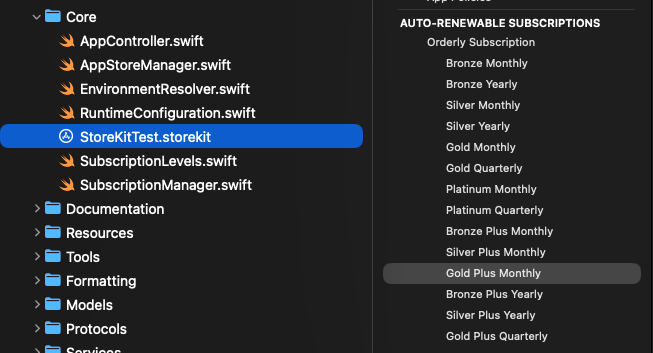
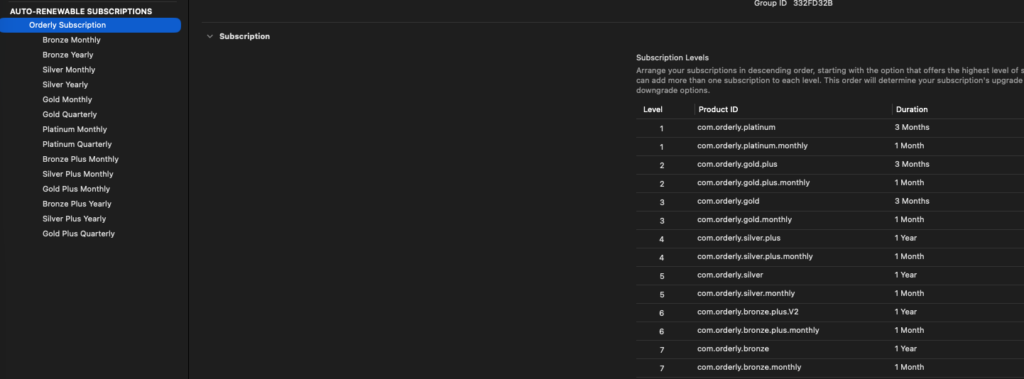
You may choose to give proper names in localisation

And, VERY IMPORTANT, you need to make sure about the right order. Highest subscription level is 1. In my case monthly and yearly/quarterly share the same level. If you fail to order properly, you will not be able to upgrade/downgrade properly.
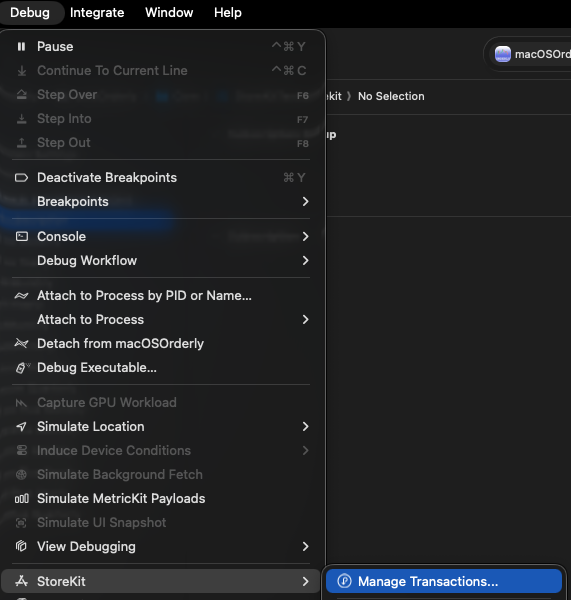
To test you can also delete current subscriptions
AI (Apple Un-Intelligence)

As mentioned elsewhere I basically started my whole app journey with AI. And it helped a lot. But without your mind properly set, you will not succeed. ChatGPT is as stupid as it gets. But read on.

The Xcode integrated chatGPT talks to much. Like pages of why / what blabla… It does not obey my “rules”, eg. yes/no questions are to be answered with yes/no.

Mostly, like literally ALWAYS, it does NOT have context. It like sky high level seems to remember what you are about to build. But when you start complicated stuff, several days of work, it may happen, you need to start explaining every day again afresh. And AI might propose everyday “new” patterns. I more than once ended up with multiple versions os similar but not enough half working solutions.

THIS IS A, SORRY, FUCKING PAIN!!!!!!!! And anyone telling you: AI will do your work in due time: he’s a big liar. Without your brain, AI itself won’t get anything to work. Sincerely: NO CHANCE.
Where chatGPT IS great: helping with single standalone stuff: eg. I need a view to show xyz, it shall have a list of items from that store in status whatever..

Like literally I do not think I made any SwiftUI view myself. That was like 99% work of chatGPT. I merely adjusted stuff to like really look nice. Where I often faced another problem. Something in UX is off. Boundary to small, overlapping stuff, invisible stuff visible etc…
You ask chatGPT for help, it answers like: this is why it will work now … then I already know: he (for me it’s a he), is just guessing.

Like literally in countless situations with issues in UX or backend logic chatGPT fails to help.
Once I figured: Orderly stats are not properly updated during engine execution. For like 4 hours I was fighting with him. He like stubbornly wouldn’t move an inch to find the problem, insisting the problem was there! Even though I had uploaded the source files for investigation. I had to literally prove (with debug logs) EVERY FUCKING step, that the problem was NOT where he thought it would be. After about 4 hours debugging, there was just 1 possibility left. And indeed that one line was wrong.
So in this respect chatGPT helped me a bit stubbornly to do some rubberducking in the end. But he completely failed to find the problem.

Same issue I had when I first uploaded, prepared AppStore connect, with all my subscriptions. Like in total I spent like a week trying to figure out how to get AppStore subscriptions to work. Okay, without chatGPT it might have been a full month of trial and error.

And something which REALLY (sorry again, FUCKING) annoyed me: He always was trying to impose old patterns (ObservableObject instead of @Observable). Every help on onChange he resolved with an approach which is legacy and soon not supported anymore.

In 2 cases: he helped develop a functionality which, in the end, required enabling “Capabilites” on the project. Early on I asked when it didn’t work: do I need to turn on a capability? No, not required.. after like hours of fucking trial and error I figured: Yes the capability IS required to be enabled.

Summary: as much as chatGPT helped, as much it was responsible for my frustrations. And the Xcode version: forget it. You cannot even ask it: why does this work there but not here. I was like 95% of the time using the web chatGPT, uploading relevant source files, or screenshots etc.

AND chatGPT mostly in edge situations was almost always wrong. Mostly because he was trained with old info, or because he couldn’t connect the dots really, thus not being really intelligent at all.

What AI can really do well is create single standalone stuff (a view). As soon as you need to start connecting stuff, he’s miserable AND NOT FUCKING INTELLIGENT AT ALL….

Enough ranting: Yes AI helped me a lot, but was also responsible for like 99.9% of my huge anger and frustration. And calling it “intelligent” is not correct. AI is NOT intelligent. It can create new stuff with your rules. But it cannot connect it to the rest of the system. And this is why AI will never, at least for a long time not, replace real programmers.
bookmark_borderArchitecture

View Hierarchy

The hierarchy of views, especially for macOS is quite complex and deep, mainly due to almost automated creation of routes via a lot of enums and ForEach.

StateModels

I mentioned it in the last paragraph here already: do not go down the road of using @State variables and binding to other views excessively. It’ll bring you to refactoring hell.

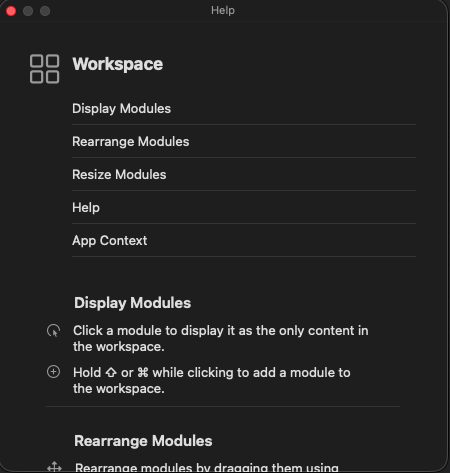
Example: I use a right side bar, for help and module configurations. I wanted to bind <esc> key to release the content of the right side bar. Shortcut is bound in a high level view, as well as the closures telling what to do.

    .onAppear{
        workspaceModel.releaseSideBarAction = {
            snapshotsModel.setComparing(false)
            moveFundsModel.reset()
            historyModel.isFiltering = false
            
        }
    }
    .onExitCommand {
        workspaceModel.releaseSideBar()            
    }

@Observable
final class WorkspaceStateModel {
    
    var releaseSideBarAction: (() -> Void)?
    
   
    func requestSideBarAccess(_ newContent: RightSideBarContent) -> Bool {
	// make sure right side bar displays currently requested content        
    }
    
    func releaseSideBar() {
        content = .none
        showSideBar = false
        // closures from the various state models to ensure proper release of right side bar
        releaseSideBarAction?() 
    }
}

If you use StateModels for all those values you need to make available between different views, then you might face the problem, that some places require a real binding. E.g. List selection: $selected

You can however bind the $selected value in an onChange modifier

Section{
    List(orders, id: \.id, selection: $selected) { order in                
	
	// your list content
    }
    
} header:{
	// your section header content
}
.onChange(of: selected){ _, newValue in
    // update your StateModel with the $selected value
    
}

bookmark_borderUX

AppRoot

So the most obvious thing to start with are “views” in Swift. I had seriously no clue where to begin with. But I had AI to ask for help, and help it did.

So I gave my ideas: I need this and that, separated by …, then a table with x and y.

So my first app being iOS, as you may imagine, available space is not abundant. So you have to think good of what and how you want to display.

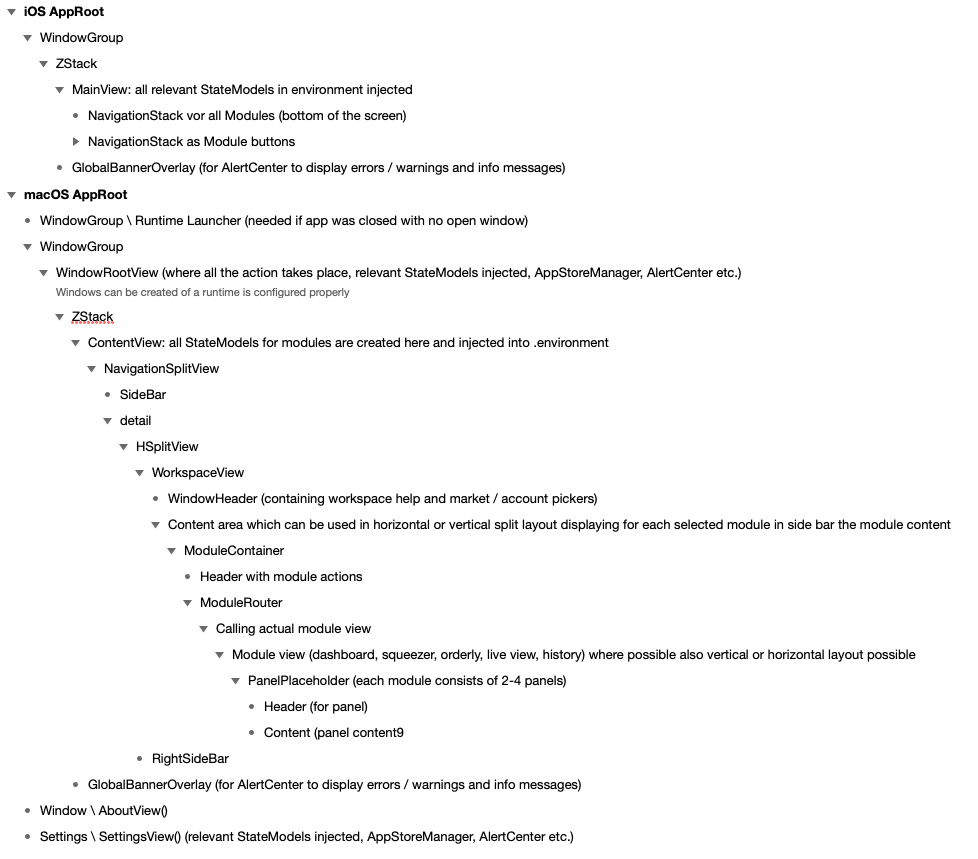
In both ports, iOS & macOS, you have basically and “AppRoot”, where the app starts.

In iOS this is rather easy, as basically you present the first view of your app and then build the routes to the various parts of your app.

macOS port however is a bit more complicated. In my case I have:

  • Settings
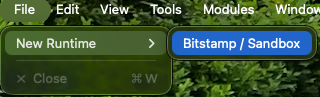
  • 2 WindowGroup (which spawns runtimes for the various exchanges and if no runtime available gives an intermediate screen neccessary as macOS needs to be able to open 1 window)
  • About

This more complex setup makes it necessary that you attach required StateModels into Environment into each of the windows (Settings, WindowGroup..). This makes wiring everything properly together slightly more complicated as in iOS.
Then within a Container of WindowGroup you’ll start arranging your window. Mine is a NavigationSplitView and the detail is again a HSplitView, such that I have a right side bar to display configuration views or help.

Configuration Panels

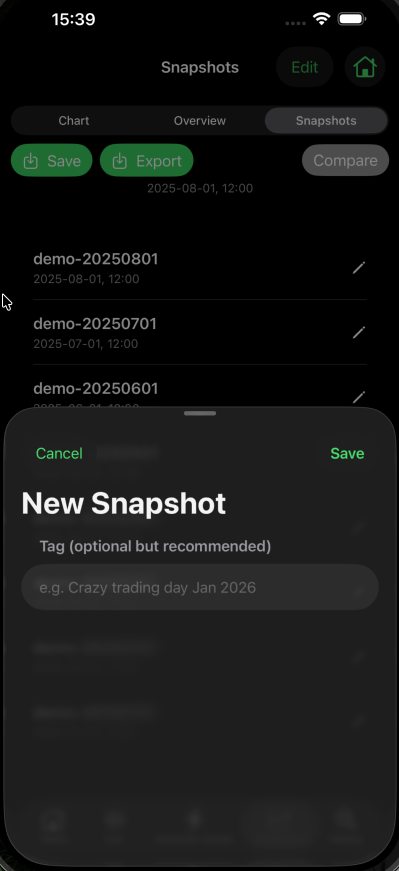
iOS Sheets

In iOS you may work with sheets, to present configuration panels or help.

you may control sheet size with

.presentationDetents([.medium, .large])

macOS HSplitView / VSplitView

On macOS you may decide to use HSplitview to show like resizable “panels” in order to display Configuration views, or Help

Unfortunately I didn’t know about these H-VSplitView until very deep into the project. A point where I had lost already hours, almost days, figuring out how I could make the workspace more configurable.

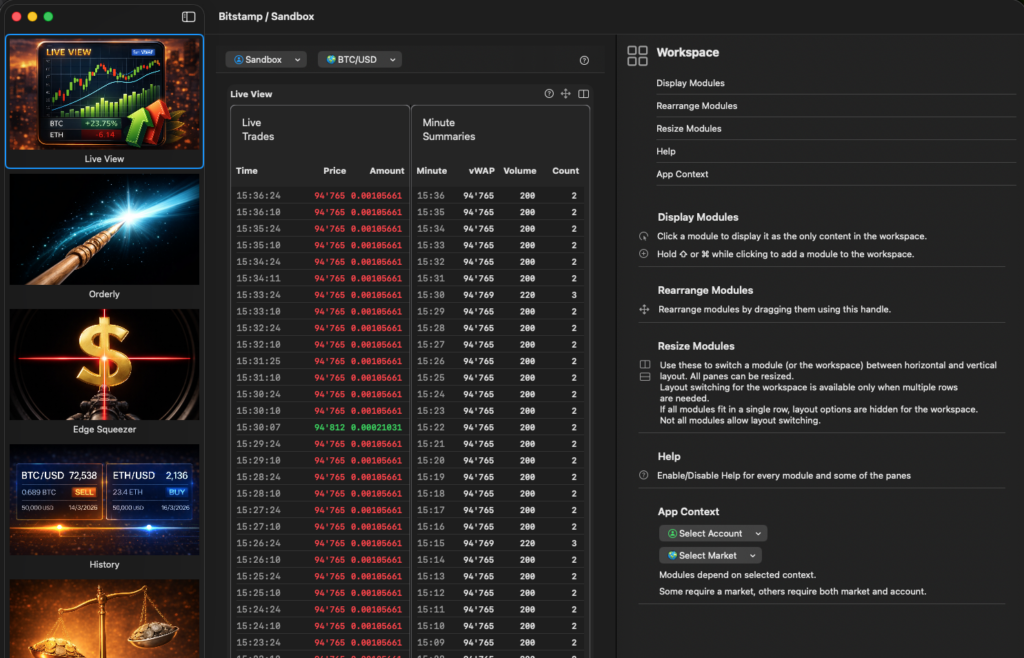
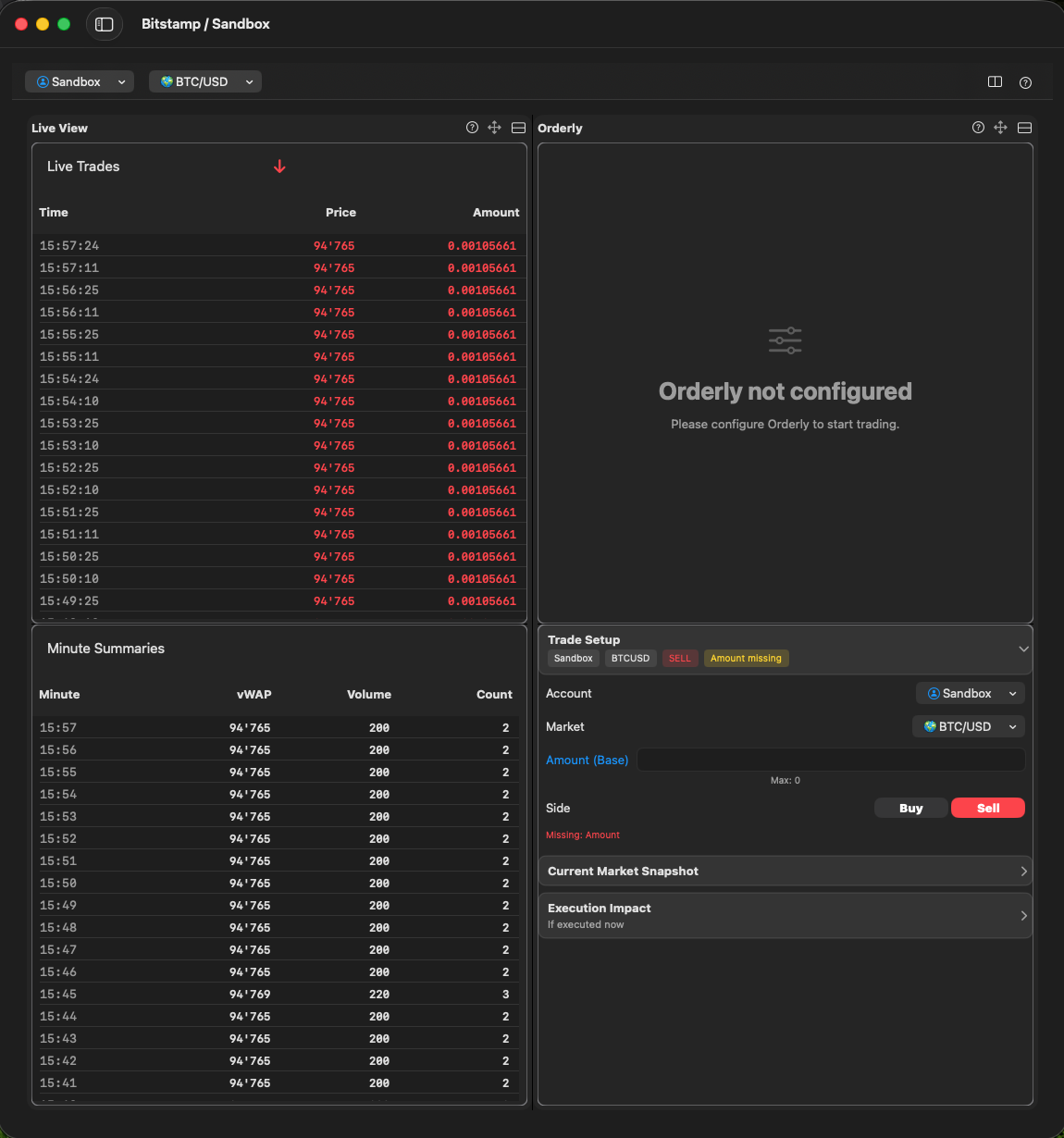
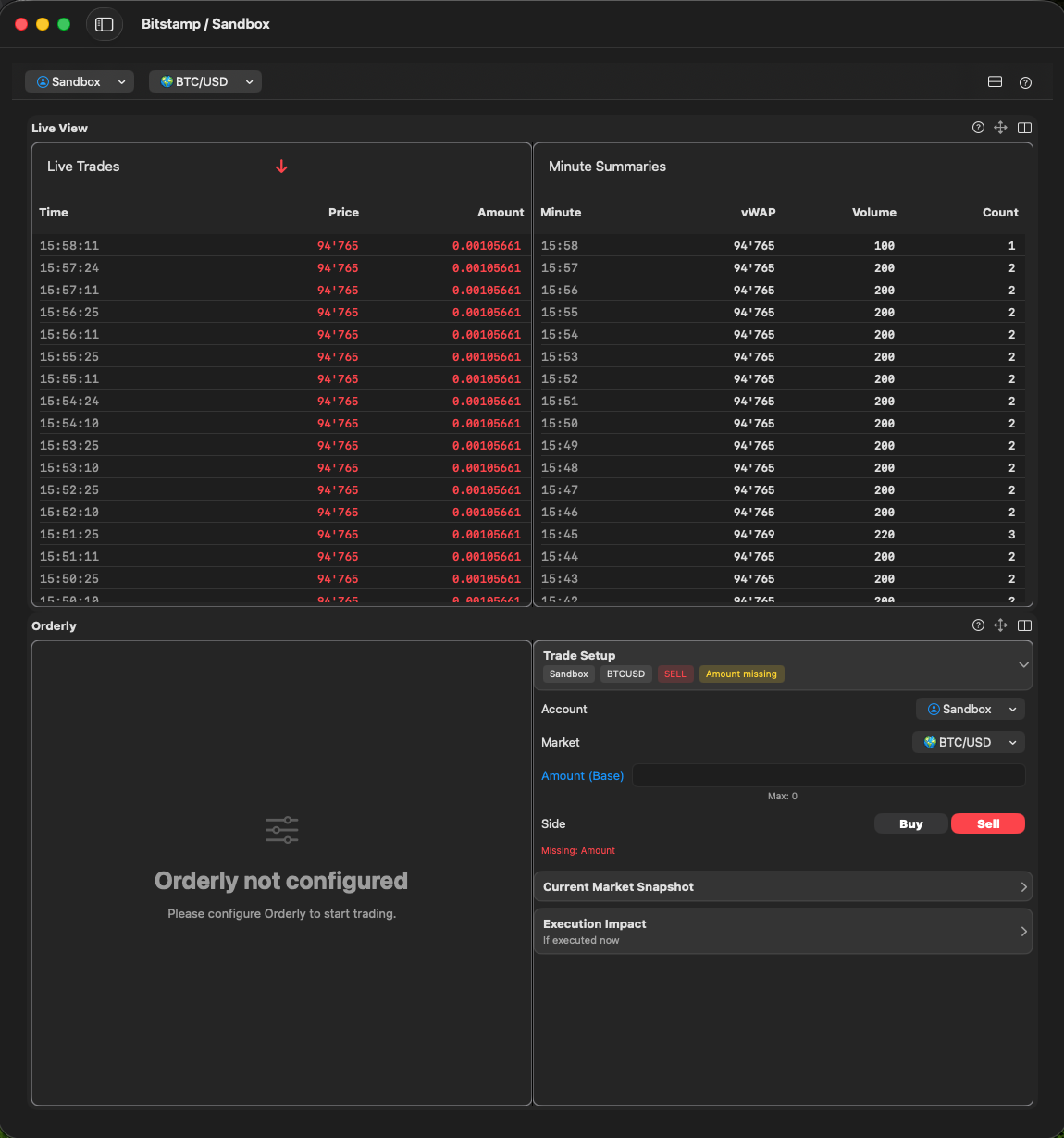
Eventually I ended up with a version which lets the user split horizontally or vertically, both on workspace and on module level.

Navigation

iOS .segmented Pickers (Tabs)

On iOS you may use .segmented Pickers to create something like tabs.

macOS Navigation

On macOS you do not really need a navigation in that sense. With the Sidebar from NavigationSplitView I have paths to all my modules, and a little bit more (ie. Help and Refresh runtime). As Settings view is also a child of AppRoot I could just easily inject the StateModels I needed.

Settings

In iOS I made an own kind of “section” for settings. In macOS Settings are handled differently. They have their own window, are called always from the same place.

Help

On iOS I used 2 ways for help:

  • with an “i” button inside views, but just for quick help
  • a complete path to my Handbook on my server

On macOS there’s 3 ways to get help:

  • right side bar if right side bar is not reserved by a module already
  • floating panel, in case of right side bar is reserved by a module
  • a complete path to my Handbook on my server

Alerts

Alerts are handled identical on both systems. Basically by applying a ZStack GlobalBannerOverlay to the Root View. If you need it in Settings and other Windows too, apply the ZStack there too!

ZStack(alignment: .top) {
	ContentView()
	// Banner presenter overlay: AppInfo AppError
	GlobalBannerOverlay()
}

Other Elements

Pickers

On iOS I had, for simplicity to add some “Pickers” to every view needing them: Market & Account Picker. On macOS however I could handle this globally. Pickers are available on the workspace view

Buttons / Toolbars

What on iOS is handled with .toolbar functionality,

I have implemented with “Modul actions” displayed on module view level.

Gestures (iOS only)

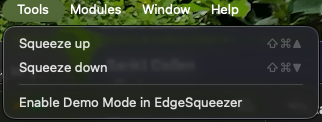
For EdgeSqueezer I have invented an own gesture, long tap then swipe, to make sure you do not accidentally squeeze by just tapping a button or so. So the user really needs to intentionally activate a squeeze.

Menus / Shortcuts (macOS only)

On macOS you have menus, short cuts hover and possibly many other features I didn’t even explore.

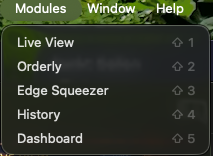
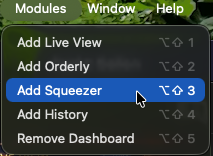
I have built my own menus and short cuts. And don’t believe chatGPT if he tells you: You cannot simply use a “modifier” to “modify” a menu. Yes, you can

Button("Live View") {
    // normal button function
}
.keyboardShortcut("1", modifiers: [.shift])
.modifierKeyAlternate(.option) {
    let isEnabled = isModuleEnabledAlready()
    Button(isEnabled ? "Remove Live View" : "Add Live View") {
	// modifier button function
    }
}

Attention

In order for menus & keyboard shortcuts to work, the window needs be focused. You may need to add a .focusable() modifier somewhere in the root view.

Instead of passing a bindingValue I propose to bind StateModels

@FocusedBinding(\.workspaceModel) var workspaceModel

Tips & Tricks

GeometryReader

On macOS a user may resize his windows, stretch, squeeze etc. You may want to adjust some stuff in your layout and/or images. In Orderly a module has a width of 600px. As long as the window width can place all active modules in 1 row, you cannot change layout between vertical and horizontal. The split will always be vertical. As soon as you squeeze the window and not all modules fit in 1 row, you can change layout.

Also side bar images. Some might get unreadable when too small, just us another image which has less small details for smaller sizes.

StateModels vs. @State variables

As soon as you have more than 1 @State variable you need to bind to other views: don’t do it. Use StateModels you can inject and consume via @Environment. If you do use @State variables and Bind them to other views you’ll soon be in refactoring hell, cause you need in every call to make sure that you actually have those variables.

I ended up defining most StateModels at AppRoot so I could inject them into Menus, Side bars and Settings eventually.

Image in Menu

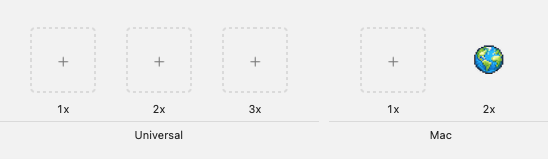
For reasons I don’t know, for macOS, I had to put the “globe” icon for the market picker in a macOS 2x asset. Only that way I could resize the icon. Every other way always resulted in a too big icon.

Menu {
    if activeMarkets.isEmpty {
	Text("No active markets")
    } else {
    // create the buttons
    }
} label: {
    HStack(spacing: 10) {
	Image("Globe")
	    .resizable()
	    .scaledToFit()
	Text(currentLabel)
	    .foregroundStyle(.primary)
    } 
}

bookmark_borderJourney to my Apple ecosystem trading tools

Follow me on my journey to a full-fledged Apple ecosystem trading system.

Bullrun end of 2017

So end of 2017, by accident a few weeks before the bullrun began I made my first investment into cryptocurrencies. After doing a lot of research on the technology and what each of the then existing cryptos had to offer.

So I really got lucky that, I guess it was less than 2 weeks later, prices of all then popular cryptos started to rise. So I got hooked. And I also got spoiled, I was misled be HODL. Basically HODL means: do not sell, wait for life changing rewards.

How wrong this theory was!

Lost my job

A few years later, I had increased my crypto positions a lot by then, I lost my job and got stuck in that situation for over 2 years. But I needed something to work on, a task. So I spent some time starting to really trade my assets. And interestingly enough: I could increase the amount of assets in a more or less decent way. I figured: most of those popular cryptos suffer every now and then huge drops. While most people fear losing their investments I eventually realised: cool, now I can increase my position!

Quick detour

While most believe drops in price are a threat to their investment, I, unfortunately rather later than sooner, realised: indeed each of these situations can actually help increase your position. Let me quickly explain(don’t nail me on the “wrong” numbers, %, I use these “rounded” numbers to illustrate the truth):

Say you buy an asset at 10$, then it drops 15%. You should now get out, even more when you see it will drop more. Say you spent 1000$ on the asset when it was 10$, it dropped to 8.5$, you sell. you only get 850$ back. So yes, you realised a loss of 15%. If however price keeps dropping, say another 15% to 7$, you can then buy with the 850$ more of the asset than you had before. In fact if you buy at 7$ for 850$ you get 120 of the asset. That’s a whooping 20% more than you initially had. And that even though you temporarily had incurred a loss of 15%. Okay, admittedly, in terms of “real value” you are still at a loss. But let’s assume price rises again to 8.5. In that case you real value is already 1020. So you have already more than you initially had when you bought for a 1000$ at 10$. Let’s now assume price rises again to 10$, in that case you can see: You indeed made 20% profit. Had you not sold and bought at lower price, you right now only had like 0 profit. Had you followed the sell/buy approach you now have 20% more value.

At that time I had explained that here

Interesting thing about my trading experiences was: I was super nervous on my first trade, don’t remember, maybe 100$. Over time I increased my order sizes, lost my nervousness. My largest order was about a quarter of a million $, obviously my assets had in the meantime reached a good price.

Bot

And through all that trading experience I thought: how can I optimise? I don’t mean entry/exit, well at least not based on signals. Most analysts say: buy then sell then, but I never saw anyone who was like 100% right, not even 50% right.
I just stuck with the idea of “huge fast drop” many times presents an opportunity window to increase the position. So the idea of my bot was born.

The bot I programmed in Python. It was more or less successful, but not at the rate I imagined. So every now and then I resorted to manual trading, or semi-automatic trading: let my bot sell, and myself tried to find a good entry (or exit depending on perspective) myself.

And it was in these situations where I found: damn: when price drops like in almost % per minute… you have a hard time to adjust your orders to squeeze just that little bit more edge out of your trades.

So the idea of EdgeSqueezer was born.

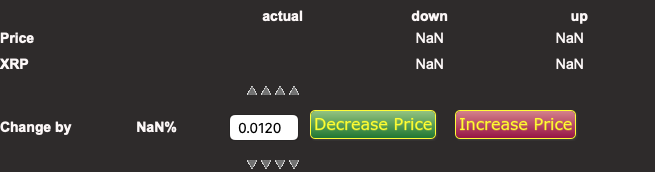
A very crude but working HTML/Javascript prototype which allowed me to adjust an order in repeated steps by the same “difference”.
At that time yet, I would not know it would eventually be known for “EdgeSqueezer“.

Lost my Job again

As it happens I lost my job again. Was paid for about 4 months, but could leave instantly.

Again I was looking for something I could work with, a task.

That was the birthday of the idea of creating an iOS app which would offer this “EdgeSqueezer” functionality to more aficionados.
But where to start? It happens that, around this time, AI was integrated into Xcode, the IDE for Apple ecosystem development projects.
So I gave it a try and it helped me a lot to get to know the language, the structures, helped me with architectures, UX, basically everything where I still lacked knowledge.
And while I was developing the iOS part, enhanced with other, minor, functionality, it dawned on me: I could also create a cool macOS port of it. The base code was identical. Only UX needed some tweaking.

And here I am, having finished V1.0 of both ports, awaiting successful Apple Review for fellow traders to equally profit from EdgeSqueezer and Orderly, an idea which was born along the journey.
Orderly, as a matter of fact was first introduced in my trading bot. The bot up to then, would upon signal to sell, sell at market, thus walking the order book, crossing the spread. Introducing the Orderly mechanics the bot does not sell at market anymore, but as limit, best offer on your side.
And reality shows: it works even for those quarter of a million $ trades it, that mechanism, worked quite effectively, not once needing to resort to “fall back” to a market order anyway.

bookmark_borderCoding


Creating a responsive web server

For the visual tool to analyse my charts I needed something to deliver the data to the tool.
While I was a few months back playing around with ideas and technologies, I came across NodeJS. Which is the easiest way for you to create a Webserver based on JavaScript language.
Don’t believe me? Checkout the document Introduction into programming from the ZIP file you find in the description of this video: https://youtu.be/l3undRJAuAU.
There you find information to get started with NodeJS.
Let me tell you: it is so easy, it makes me totally happy to be able to return data for asynchronous calls to my webpage within a few minutes.
var path = require(‘path’)
var express = require(‘express’);
var app = express();
var session = require(‘express-session’)
app.use(session({
secret: ‘chosen language’,
saveUninitialized: true,
resave: false,
}))
var server = app.listen(3000, function (err) {
app.use(express.static(__dirname + ‘/’));
if (err) {
console.log(err.message)
}
console.log(“Server listening at port 3000”)
});
Obviously it does not do much besides listening to incoming requests on port 3000.
You add a little bit of code like:
app.get(‘/’, (request, response) => {
response.sendFile(path.join(__dirname, ‘index.html’));
});
app.get(‘/manual’, (request, response) => {
response.send(“Hello world, no HTML code, pure text”)
});
app.get(‘/test’, (request, response) => {
let path = url.parse(request.url).pathname;
console.log(path)
json = { Name: ‘Michael’, LastName: ‘Zischeck’ }
response.json(json)
})
Then you can call your web server like:
http://localhost:3000/manual
http://localhost:3000/test
http://localhost:3000/ (this will serve you the index.html from the same directory as from where you run the server
Isn’t that simple?
How about returning data from a database, sqlite3 in this example:
app.get(‘/data’, (request, response) => {
let path = url.parse(request.url).pathname;
var parts = url.parse(request.url, true);
var query = parts.query;
action = query.page
console.log(“action:” + action)
if (action == undefined) {
sql = ‘SELECT id, price from tableName limit 0, 1000’;
db.all(sql, (err, rows) => {
if (err) {
console.error(err.message);
}
rows.unshift({ “id”: “id”, “price”: “price” })
response.json(rows);
});
} else if (action == “next”) {
page++
sql = `SELECT id, price from tableName limit ${page * 500}, 1000`;
db.all(sql, (err, rows) => {
if (err) {
console.error(err.message);
}
rows.unshift({ “id”: “id”, “price”: “price” })
response.json(rows);
});
} else if (action == “prev”) {
page–
sql = `SELECT id, price from tableName limit ${page * 500}, 1000`;
db.all(sql, (err, rows) => {
if (err) {
console.error(err.message);
}
rows.unshift({ “id”: “id”, “price”: “price” })
response.json(rows);
});
}
});
That’s it! Complete code for my visual chart analysis tool! How easy is this?

Going back to Python

While I was almost done with my trading bot in NodeJS, I basically converted the most important parts of my Orst attempt in Python, it happened that when I run simulations, like tens of thousands of rows to process, NodeJS went nuts.
I really tried, and I really would have wanted to stay with NodeJS, but I won’t! To much asynchronous.
In Python I have everything under control.
What I will leave in NodeJS is my other project. A tool to analyse XRPL accounts.
The good news though is this:
As I ported from Python to NodeJS, I simplified a lot. Made the whole logic more straightforward, and guess what: I found a simple, very stupid but very powerful bug in my logic!
So even if this sideway to NodeJS and back to Python was just about to figure out this stupid bug, then it was worth it.
Actually it was not even a bug, it was more a strange thing in my logic.
It boils down to this:
With my trading bot I want to prove that even in bearish markets I can profit. So basically I apply the Stop Loss strategy explained here.
In short:
If prices drop, I sell, and I rebuy at lower price, if possible.
Sometimes, the price does not drop further after I sold, but keeps rising. Then I have to rebuy in at a higher price, and at a loss obviously.
That’s all part of the “strategy”, the idea being I can buy more often low, than I have to buy high. And that I can buy relatively lower than I have to buy higher.
But there’s times, hopefully a lot of times, where the prices just keep rising. What then? Well I have to adjust my triggers as to when I want to sell. Those triggers keep rising.
In my old code I would “UP THE ANTE” every time a new high was reached. With the stupid effect, that, obviously, after the high the price starts dropping any my bot does its duly work: it sells (unfortunately at a way to high price).
I figured now that I should better only “UP THE ANTE” a little bit, like a 1/10 of the previous high price and the new high price.
Like old price (for my calculations) was 1$, new price is 1.20$. Now I will only increase the price for my calculations to 1.02$ and not to 1.20.
With the effect, that I “grow” into rising prices without ever risking selling too early again.
So today I finished my bot, it will start in 15 minutes to run, for a whole day long. Then we’ll see what happens.

Bot simulation

For my bot simulations I wanted to calculate as many possibilities as possible.
I have 3 triggers: sell low, rebuy lower, or rebuy higher (in case the price does not drop to the rebuy lower level). I wanted to see the outcome for all possibilities, in order for me to chose the right levels for the 3 triggers.
Let me give you an example to understand this:
Price of the asset is 10
It drops, sell trigger defines when to sell.
Is sell trigger at 10% then I would sell at 9.
If rebuy low trigger is another 10% lower, I would rebuy at 8 (for simplicity).
If however I am unlucky and the price starts rising after I sold in expectance the price would drop lower, then I surely don’t wanna miss out on the price increase either. So I have to, sour it is, bit the lemon, and rebuy at a higher level, say 10% too.
That means I sold at 9 and I will buy again if it drops to 8 (which is good) or rises to 11 (which is bad).
The same game I could make with 1%.
Meaning I sell at 9.9, rebuy at either 9.8 or 10.1.
You get the idea.
Now all those percentages, when the price changes by how much I sell, rebuy low or rebuy high:
there’s MANY possibilities.
And I want to make sure my bot uses one which proposes good enough profits.
I have now, started afresh 17th January, around 120k data points from Bitstamp, and around 400k data points from Binance.
So one simulation (eg. sell: -1%, low: -2%, high: 3%) will need to be calculated with 120k prices. Assumption, of course, is, that price development is always similar.
So what did I do?
I created my bot from the beginning, to be able to make simulation runs. I can feed as many simulations at once as I want. I have 3 levels, sell/low/high, I want to adjust.
My initial code looked like this for running this deep analysis was:
s = –0.3
down = –0.1
up = 0.1
count = 0
while s >= –4:
l = –2
while l >= –5:
h = –1
while h <= 5:
count += 1
h += up
print(“s:{}tl:{}th:{}”.format(s, l, h))
l += down
s += down
and the result something like this
s:-0.3 l:-2                 h:5.099999999999998
s:-0.3 l:-2.1         h:5.099999999999998
s:-0.3 l:-2.2         h:5.099999999999998
s:-0.3 l:-2.3000000000000003 h:5.099999999999998
s:-0.3 l:-2.4000000000000004 h:5.099999999999998
s:-0.3 l:-2.5000000000000004 h:5.099999999999998
s:-0.3 l:-2.6000000000000005 h:5.099999999999998
s:-0.3 l:-2.7000000000000006 h:5.099999999999998
s:-0.3 l:-2.8000000000000007 h:5.099999999999998
s:-0.3 l:-2.900000000000001 h:5.099999999999998
s:-0.3 l:-3.000000000000001 h:5.099999999999998
s:-0.3 l:-3.100000000000001 h:5.099999999999998
s:-0.3 l:-3.200000000000001 h:5.099999999999998
s:-0.3 l:-3.300000000000001 h:5.099999999999998
s:-0.3 l:-3.4000000000000012 h:5.099999999999998
s:-0.3 l:-3.5000000000000013 h:5.099999999999998
s:-0.3 l:-3.6000000000000014 h:5.099999999999998
s:-0.3 l:-3.7000000000000015 h:5.099999999999998
s:-0.3 l:-3.8000000000000016 h:5.099999999999998
s:-0.3 l:-3.9000000000000017 h:5.099999999999998
s:-0.3 l:-4.000000000000002 h:5.099999999999998
s:-0.3 l:-4.100000000000001 h:5.099999999999998
s:-0.3 l:-4.200000000000001 h:5.099999999999998
s:-0.3 l:-4.300000000000001 h:5.099999999999998
my revised code is now.
s = –3
down = –1
up = 1
count = 0
while s >= –40:
l = –2
while l >= –50:
h = –1
while h <= 50:
count += 1
h += up
print(“s:{}tl:{}th:{}”.format(s, l, h))
l += down
s += down
and my revised result:
s:-3     l:-21 h:51
s:-3     l:-22 h:51
s:-3     l:-23 h:51
s:-3     l:-24 h:51
s:-3     l:-25 h:51
s:-3     l:-26 h:51
s:-3     l:-27 h:51
s:-3     l:-28 h:51
s:-3     l:-29 h:51
s:-3     l:-30 h:51
s:-3     l:-31 h:51
s:-3     l:-32 h:51
s:-3     l:-33 h:51
s:-3     l:-34 h:51
s:-3     l:-35 h:51
s:-3     l:-36 h:51
s:-3     l:-37 h:51
s:-3     l:-38 h:51
s:-3     l:-39 h:51
s:-3     l:-40 h:51
s:-3     l:-41 h:51
s:-3     l:-42 h:51
s:-3     l:-43 h:51
So now I have values I can just divide by 10 and they are as accurate as accurate can be with floating points.
Now this piece just made sure that the loops would create all the possibilities I wanted to calculate.
Obviously my bot logic and the log part (file or db) is missing.
That’s what I mean by decomplify your problems. Make one thing understood clearly, then add the next complexity level.

Profiling code

As it turns out for >100k price points my simulation run 2 hours. While, for 7 million decisions to take, quite acceptable, I wanted to improve on that.

Comes in cProfile
Add this to your code:
import cProfile
cProfile.run(‘main()’)
and it will give you a result like this:

         613716 function calls in 0.530 seconds

   Ordered by: standard name

   ncalls  tottime  percall  cumtime  percall filename:lineno(function)

        1    0.000    0.000    0.529    0.529 <string>:1(<module>)

        1    0.000    0.000    0.000    0.000 classBitstampClient.py:18(__init__)

     9999    0.260    0.000    0.523    0.000 classLogic.py:114(logic)

   127159    0.037    0.000    0.037    0.000 classLogic.py:163(readyToSell)

   391749    0.185    0.000    0.185    0.000 classLogic.py:176(readyToBuy)

     7318    0.011    0.000    0.012    0.000 classLogic.py:273(simulateOrder)

     9999    0.003    0.000    0.003    0.000 classLogic.py:303(getBalances)

     9999    0.018    0.000    0.024    0.000 classLogic.py:347(updateStats)

        1    0.000    0.000    0.000    0.000 classLogic.py:88(initLogic)

    10027    0.002    0.000    0.002    0.000 classLogicPlayGround.py:102(logInfo)

        1    0.000    0.000    0.000    0.000 classLogicPlayGround.py:105(__del__)

     9999    0.001    0.000    0.001    0.000 classLogicPlayGround.py:108(updateHeartBeat)

        1    0.000    0.000    0.000    0.000 classLogicPlayGround.py:16(__init__)

     7370    0.001    0.000    0.001    0.000 classLogicPlayGround.py:99(logSimulation)

        1    0.006    0.006    0.529    0.529 fetchAllAtOnce.py:40(main)

        1    0.000    0.000    0.530    0.530 {built-in method builtins.exec}

     9999    0.001    0.000    0.001    0.000 {built-in method builtins.len}

        3    0.000    0.000    0.000    0.000 {built-in method builtins.print}

        2    0.000    0.000    0.000    0.000 {built-in method now}

    10051    0.002    0.000    0.002    0.000 {method ‘append’ of ‘list’ objects}

        1    0.000    0.000    0.000    0.000 {method ‘commit’ of ‘sqlite3.Connection’ objects}

        1    0.000    0.000    0.000    0.000 {method ‘disable’ of ‘_lsprof.Profiler’ objects}

       53    0.000    0.000    0.000    0.000 {method ‘format’ of ‘str’ objects}

     9979    0.003    0.000    0.003    0.000 {method ‘pop’ of ‘list’ objects}

        1    0.000    0.000    0.000    0.000 {method ‘strftime’ of ‘datetime.date’ objects}

Run this over a decent amount of data points, not all, Ogure out where you can improve your data, improve it, test again, see the difference and stick with the change or revert back.
I could improve with 2 little changes almost 25% performance, which is 30 minutes on a 2 hour run.
But over time, seeing which ranges totally never make sense, I can fine-tune, eliminating some trigger bands for sell/low/high and thus increase simulation time even further.

Sending messages to running code

Up till now I didn’t know it’s possible to send a “message” to an already running piece of code. Okay I knew about event handlers, but not that “sending signals” (or messages) is possible.
So I figured my bot is doing normally quite well, but in times of very high volatility, or very steep price increases, he gets lost and I want to stop trading during these moments.
So far I’d have to kill the process, change the script which runs the process every hour, to not run the process. And if I wanted to start trading again I would undo those changes.
Now with signals it’s quite easy.
I send a signal, I use USR1/USR2 (for stop/start trading) and intercept and change a flag in my logic.
I have a flag: executingTrades. I simply switch this flag and my bot stops or restarts trading.
How to send a signal?
Use the kill command in a shell script:

#!/bin/zsh

# find the pid from the particular bot I want to stop trading

pid=`pgrep -f “[C]ellar.*websocket_temp.py”`

# send signal usr1

kill -s usr1 $pid

echo “websocket_temp.py trading stopped”


In the python code for the websocket you simply add these lines before going into .run_forever


signal.signal(signal.SIGINT, receiveSignal)
signal.signal(signal.SIGUSR1, receiveSignal)
signal.signal(signal.SIGUSR2, receiveSignal)
and the appropriate function which handles the signals
def receiveSignal(signalNumber, frame):
global logic
try:
if signalNumber == signal.SIGINT:
ticker_ws.close()
elif signalNumber == signal.SIGUSR1:
logic.simulate = False
elif signalNumber == signal.SIGUSR2:
logic.simulate = True
except Exception as e:
print(e)
Tried and tested on a bot which just consumes but does not act on the messages coming from the websocket.
Index