bookmark_borderUX

AppRoot

So the most obvious thing to start with are “views” in Swift. I had seriously no clue where to begin with. But I had AI to ask for help, and help it did.

So I gave my ideas: I need this and that, separated by …, then a table with x and y.

So my first app being iOS, as you may imagine, available space is not abundant. So you have to think good of what and how you want to display.

In both ports, iOS & macOS, you have basically and “AppRoot”, where the app starts.

In iOS this is rather easy, as basically you present the first view of your app and then build the routes to the various parts of your app.

macOS port however is a bit more complicated. In my case I have:

  • Settings
  • 2 WindowGroup (which spawns runtimes for the various exchanges and if no runtime available gives an intermediate screen neccessary as macOS needs to be able to open 1 window)
  • About

This more complex setup makes it necessary that you attach required StateModels into Environment into each of the windows (Settings, WindowGroup..). This makes wiring everything properly together slightly more complicated as in iOS.
Then within a Container of WindowGroup you’ll start arranging your window. Mine is a NavigationSplitView and the detail is again a HSplitView, such that I have a right side bar to display configuration views or help.

Configuration Panels

iOS Sheets

In iOS you may work with sheets, to present configuration panels or help.
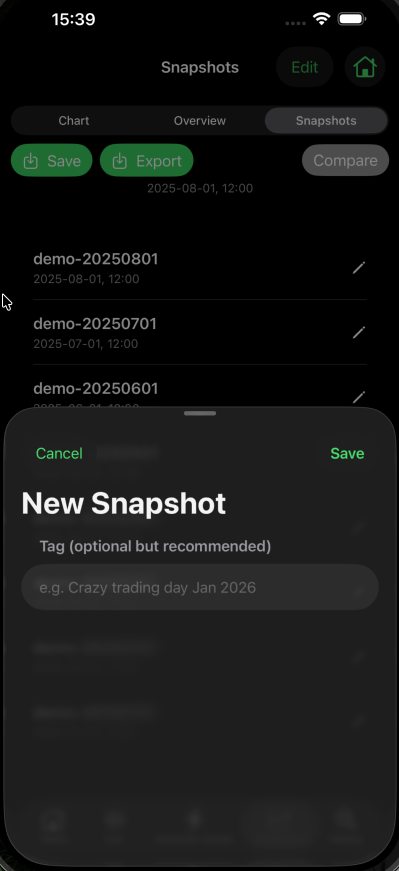
you may control sheet size with

.presentationDetents([.medium, .large])

macOS HSplitView / VSplitView

On macOS you may decide to use HSplitview to show like resizable “panels” in order to display Configuration views, or Help
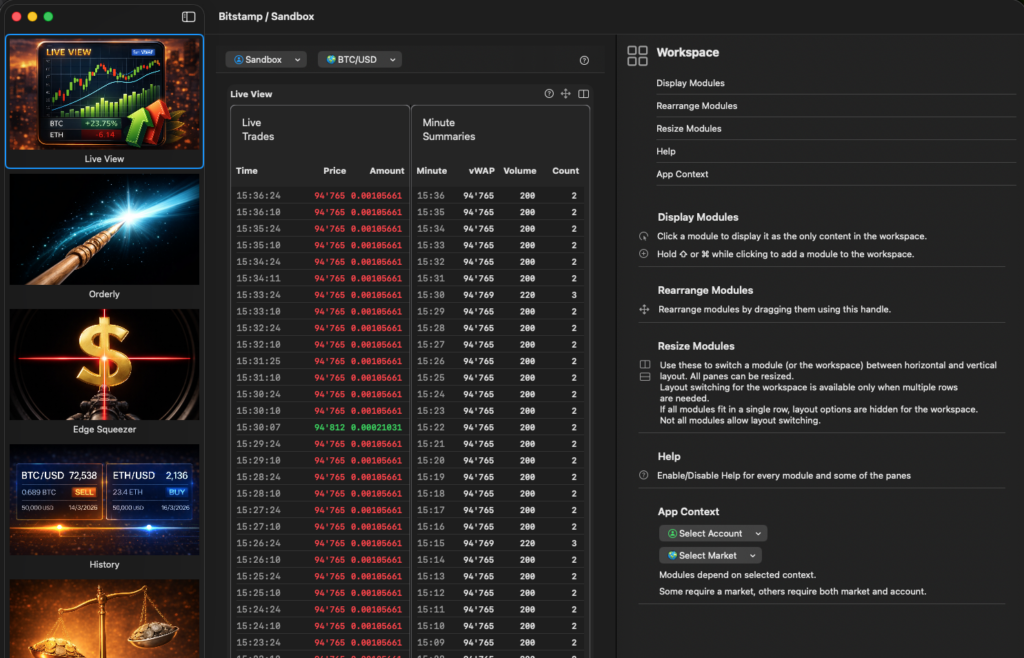
Unfortunately I didn’t know about these H-VSplitView until very deep into the project. A point where I had lost already hours, almost days, figuring out how I could make the workspace more configurable.

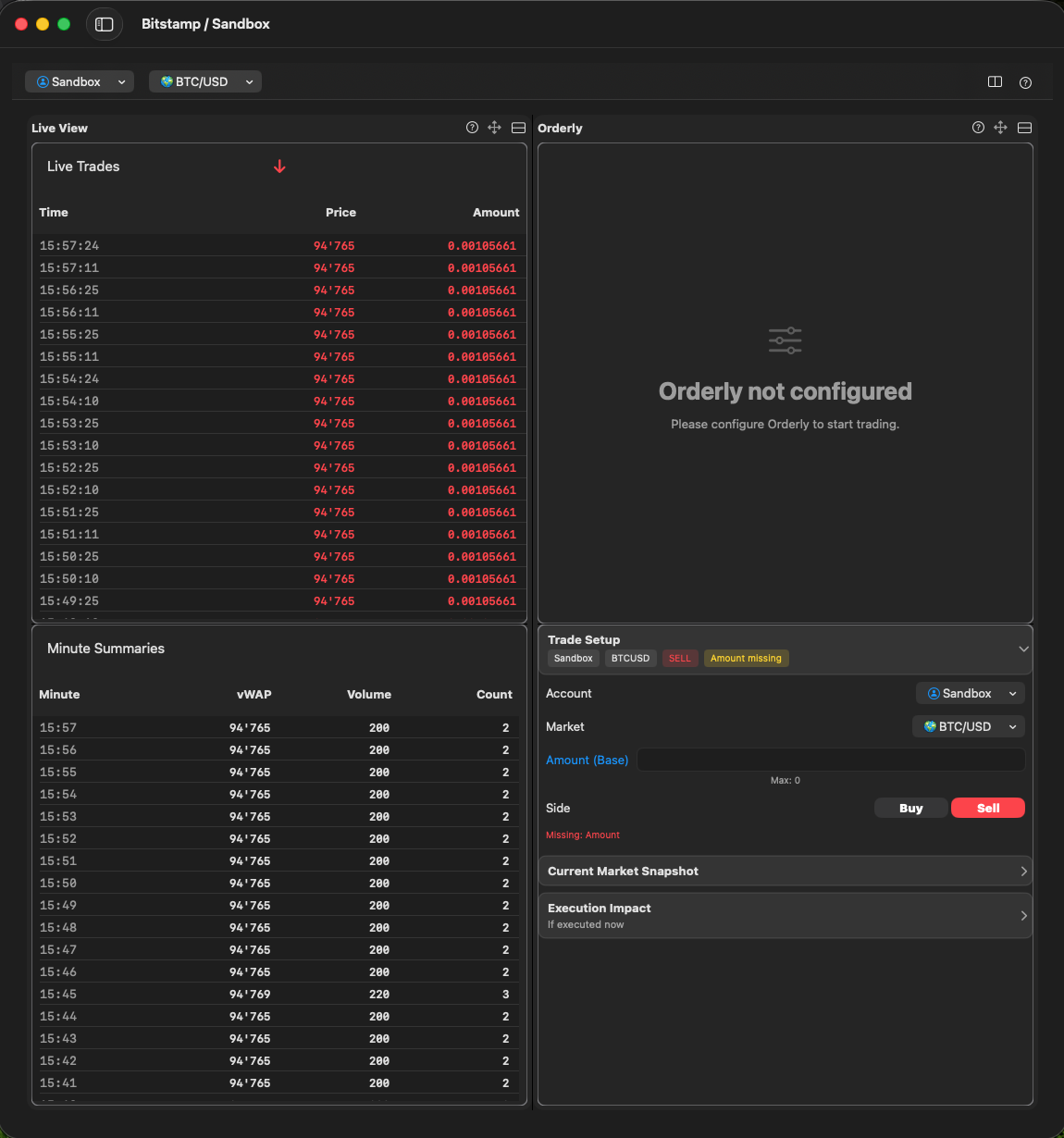
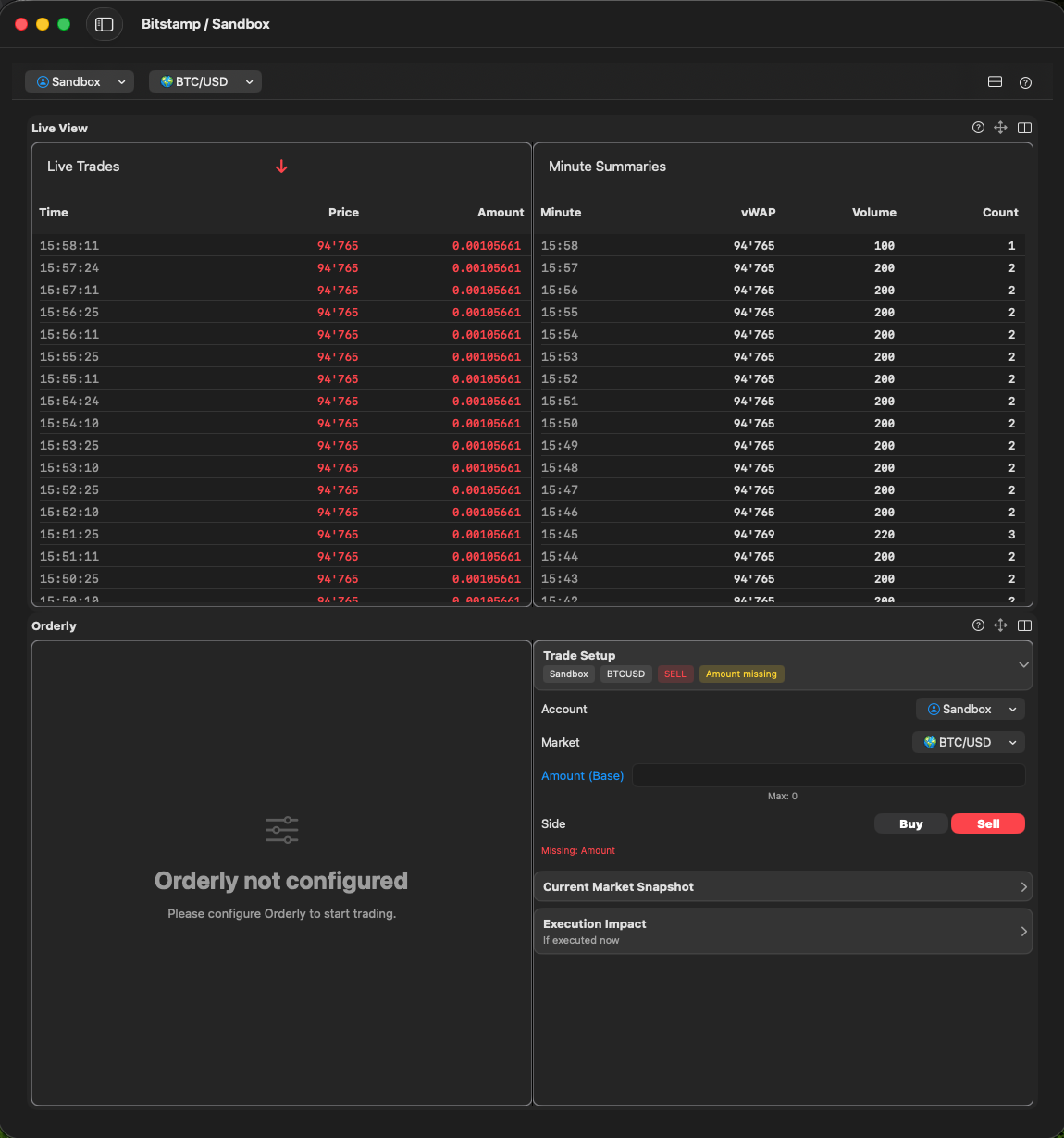
Eventually I ended up with a version which lets the user split horizontally or vertically, both on workspace and on module level.
Navigation

iOS .segmented Pickers (Tabs)

On iOS you may use .segmented Pickers to create something like tabs.

macOS Navigation

On macOS you do not really need a navigation in that sense. With the Sidebar from NavigationSplitView I have paths to all my modules, and a little bit more (ie. Help and Refresh runtime). As Settings view is also a child of AppRoot I could just easily inject the StateModels I needed.

Settings

In iOS I made an own kind of “section” for settings. In macOS Settings are handled differently. They have their own window, are called always from the same place.

Help

On iOS I used 2 ways for help:

  • with an “i” button inside views, but just for quick help
  • a complete path to my Handbook on my server
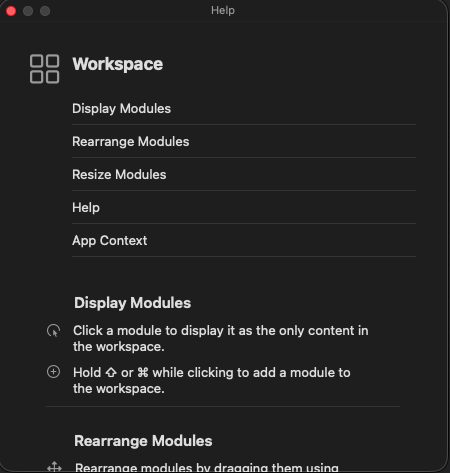
On macOS there’s 3 ways to get help:

  • right side bar if right side bar is not reserved by a module already
  • floating panel, in case of right side bar is reserved by a module
  • a complete path to my Handbook on my server

Alerts

Alerts are handled identical on both systems. Basically by applying a ZStack GlobalBannerOverlay to the Root View. If you need it in Settings and other Windows too, apply the ZStack there too!

ZStack(alignment: .top) {
	ContentView()
	// Banner presenter overlay: AppInfo AppError
	GlobalBannerOverlay()
}

Other Elements

Pickers

On iOS I had, for simplicity to add some “Pickers” to every view needing them: Market & Account Picker. On macOS however I could handle this globally. Pickers are available on the workspace view

Buttons / Toolbars

What on iOS is handled with .toolbar functionality,
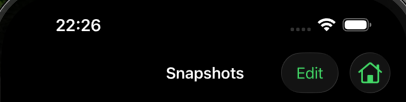
I have implemented with “Modul actions” displayed on module view level.

Gestures (iOS only)

For EdgeSqueezer I have invented an own gesture to make sure you do not accidentally squeeze by just tapping a button or so. So the user really needs to intentionally activate a squeeze.

Menus (macOS only)

On macOS you have menus, short cuts hover and possibly many other features I didn’t even explore.

I have built my own menus and short cuts. And don’t believe chatGPT if he tells you: You cannot simply use a “modifier” to “modify” a menu. Yes, you can
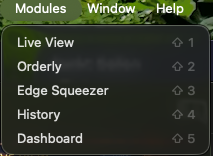
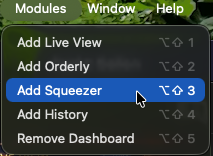
Keyboard shortcuts (macOS only)

bookmark_borderJourney to my Apple ecosystem trading tools

Follow me on my journey to a full-fledged Apple ecosystem trading system.

Bullrun end of 2017

So end of 2017, by accident a few weeks before the bullrun began I made my first investment into cryptocurrencies. After doing a lot of research on the technology and what each of the then existing cryptos had to offer.

So I really got lucky that, I guess it was less than 2 weeks later, prices of all then popular cryptos started to rise. So I got hooked. And I also got spoiled, I was misled be HODL. Basically HODL means: do not sell, wait for life changing rewards.

How wrong this theory was!

Lost my job

A few years later, I had increased my crypto positions a lot by then, I lost my job and got stuck in that situation for over 2 years. But I needed something to work on, a task. So I spent some time starting to really trade my assets. And interestingly enough: I could increase the amount of assets in a more or less decent way. I figured: most of those popular cryptos suffer every now and then huge drops. While most people fear losing their investments I eventually realised: cool, now I can increase my position!

Quick detour

While most believe drops in price are a threat to their investment, I, unfortunately rather later than sooner, realised: indeed each of these situations can actually help increase your position. Let me quickly explain(don’t nail me on the “wrong” numbers, %, I use these “rounded” numbers to illustrate the truth):

Say you buy an asset at 10$, then it drops 15%. You should now get out, even more when you see it will drop more. Say you spent 1000$ on the asset when it was 10$, it dropped to 8.5$, you sell. you only get 850$ back. So yes, you realised a loss of 15%. If however price keeps dropping, say another 15% to 7$, you can then buy with the 850$ more of the asset than you had before. In fact if you buy at 7$ for 850$ you get 120 of the asset. That’s a whooping 20% more than you initially had. And that even though you temporarily had incurred a loss of 15%. Okay, admittedly, in terms of “real value” you are still at a loss. But let’s assume price rises again to 8.5. In that case you real value is already 1020. So you have already more than you initially had when you bought for a 1000$ at 10$. Let’s now assume price rises again to 10$, in that case you can see: You indeed made 20% profit. Had you not sold and bought at lower price, you right now only had like 0 profit. Had you followed the sell/buy approach you now have 20% more value.

At that time I had explained that here

Interesting thing about my trading experiences was: I was super nervous on my first trade, don’t remember, maybe 100$. Over time I increased my order sizes, lost my nervousness. My largest order was about a quarter of a million $, obviously my assets had in the meantime reached a good price.

Bot

And through all that trading experience I thought: how can I optimise? I don’t mean entry/exit, well at least not based on signals. Most analysts say: buy then sell then, but I never saw anyone who was like 100% right, not even 50% right.
I just stuck with the idea of “huge fast drop” many times presents an opportunity window to increase the position. So the idea of my bot was born.

The bot I programmed in Python. It was more or less successful, but not at the rate I imagined. So every now and then I resorted to manual trading, or semi-automatic trading: let my bot sell, and myself tried to find a good entry (or exit depending on perspective) myself.

And it was in these situations where I found: damn: when price drops like in almost % per minute… you have a hard time to adjust your orders to squeeze just that little bit more edge out of your trades.

So the idea of EdgeSqueezer was born.

A very crude but working HTML/Javascript prototype which allowed me to adjust an order in repeated steps by the same “difference”.
At that time yet, I would not know it would eventually be known for “EdgeSqueezer“.

Lost my Job again

As it happens I lost my job again. Was paid for about 4 months, but could leave instantly.

Again I was looking for something I could work with, a task.

That was the birthday of the idea of creating an iOS app which would offer this “EdgeSqueezer” functionality to more aficionados.
But where to start? It happens that, around this time, AI was integrated into Xcode, the IDE for Apple ecosystem development projects.
So I gave it a try and it helped me a lot to get to know the language, the structures, helped me with architectures, UX, basically everything where I still lacked knowledge.
And while I was developing the iOS part, enhanced with other, minor, functionality, it dawned on me: I could also create a cool macOS port of it. The base code was identical. Only UX needed some tweaking.

And here I am, having finished V1.0 of both ports, awaiting successful Apple Review for fellow traders to equally profit from EdgeSqueezer and Orderly, an idea which was born along the journey.
Orderly, as a matter of fact was first introduced in my trading bot. The bot up to then, would upon signal to sell, sell at market, thus walking the order book, crossing the spread. Introducing the Orderly mechanics the bot does not sell at market anymore, but as limit, best offer on your side.
And reality shows: it works even for those quarter of a million $ trades it, that mechanism, worked quite effectively, not once needing to resort to “fall back” to a market order anyway.